Pasting images into Claude Code from Kitty terminal
15th January 2026
I’ve been using the kitty terminal a lot recently. It has tabs and Themes. It’s fast. If Claude is a crab, kitty is his shell.
When I run Claude Code in kitty, the one workflow that keeps tripping me up is pasting images. On macOS or in other terminals, I can copy a screenshot or image file, hit Ctrl+V (or Cmd+V), and the image is pasted and passed to Claude for analysis. In Kitty on Ubuntu? Nothing happens.
Kitty doesn’t have built-in support for pasting images directly into the terminal. It turns out this is solvable with a small shell script and some configuration.
This matters for Claude Code because one of its most useful features is the ability to analyze screenshots. “Here’s a screenshot of the bug” or “here’s the design I’m trying to implement” are incredibly useful prompts—but only if you can actually show Claude the image.
The solution
The trick is to intercept Ctrl+V, check whether the clipboard contains an image, and if so, save it to a temp file and paste the file path instead. Claude Code can then read the image from that path.
I found a solution on shukebeta’s blog that does exactly this. Here’s the setup:
Step 1: Install xclip
For X11 systems (which is what I’m running on Ubuntu):
sudo apt install xclip
For Wayland, you’d install wl-clipboard instead.
Step 2: Create the clipboard script
Create a file at ~/bin/clip2path:
#!/usr/bin/env bash
set -e

if [ -n "$WAYLAND_DISPLAY" ]; then
    types=$(wl-paste --list-types)
    if grep -q '^image/' <<<"$types"; then
        ext=$(grep -m1 '^image/' <<<"$types" | cut -d/ -f2 | cut -d';' -f1)
        file="/tmp/clip_$(date +%s).${ext}"
        wl-paste > "$file"
        printf '%q' "$file" | kitty @ send-text --stdin
    else
        wl-paste --no-newline | kitty @ send-text --stdin
    fi
elif [ -n "$DISPLAY" ]; then
    types=$(xclip -selection clipboard -t TARGETS -o)
    if grep -q '^image/' <<<"$types"; then
        ext=$(grep -m1 '^image/' <<<"$types" | cut -d/ -f2 | cut -d';' -f1)
        file="/tmp/clip_$(date +%s).${ext}"
        xclip -selection clipboard -t "image/${ext}" -o > "$file"
        printf '%q' "$file" | kitty @ send-text --stdin
    else
        xclip -selection clipboard -o | kitty @ send-text --stdin
    fi
fi
The script checks whether you’re on Wayland or X11, queries the clipboard for available MIME types, and either dumps the image to a temp file (pasting the path) or passes through text normally.
Make it executable:
mkdir -p ~/bin
chmod +x ~/bin/clip2path
Step 3: Configure Kitty
Add these lines to ~/.config/kitty/kitty.conf:
allow_remote_control yes
listen_on unix:/tmp/kitty-socket
map ctrl+v launch --type=background --allow-remote-control --keep-focus ~/bin/clip2path
The allow_remote_control and listen_on settings let the script communicate back to Kitty via kitty @ send-text. The key mapping intercepts Ctrl+V and runs our script instead of the default paste.
Step 4: Restart Kitty
Close and reopen Kitty for the changes to take effect.
Using it
Now when I copy a screenshot and press Ctrl+V in Kitty, I get something like:
/tmp/clip_1768458331.png
Claude Code picks up that file path and can read the image. I tested it by pasting this screenshot:
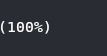
I asked Claude what number was in the image—he correctly identified “100”.
Text paste still works normally. The script detects whether the clipboard contains image data and only does the temp-file dance when necessary.
One thing to note
The temp files accumulate in /tmp/ but get cleared on reboot. If you’re pasting a lot of images in a long session, you might want to periodically clean them up, but in practice it hasn’t been an issue for me.
Kitty also has a built-in kitten clipboard command that can retrieve images manually:
kitten clipboard -g picture.png
But having Ctrl+V just work is much more convenient for the Claude Code workflow. Want to use this yourself? Ask Claude set it up for you:
please setup image pasting for kitty as described in this blog post: https://micahstubbs.ai/2026/Jan/15/kitty-image-paste-claude-code/
Recent articles
- Cleaning up taskmaster's terminal output - 25th February 2026
- Building a functional consciousness eval suite for LLMs - 8th February 2026
- Claude Code starts faster on Ubuntu when installed via Homebrew - 26th January 2026